Tag: Laptop

  • Lenovo ThinkPad P51s Review

    Lenovo ThinkPad P51s Review

    Thanks to Lenovo and their Lenovo Insiders program #LenovoIN,  I received a new Lenovo ThinkPad P51s.

    I’ve previously reviewed the ThinkPad P50 (which has been superseeded by the ThinkPad P51) which is the big brother or sister to this device. Where the P51 is a top end workstation with multiple hard drive bays, 4 RAM slots and so on, the P51s drops a few of these extra features to be a bit more mobile, while still fitting in the workstation class.

    Tech Specs

    Here’s an overview of the possible technical specifications of the P51s, with the options I have on this model bolded. I’ll talk in more details about some of these below.

    Processor

    • 7th Gen Intel® Core™ i5-7300U Processor (3M Cache, 2.6GHz, max. 3.5GHz), vPro
    • 7th Gen Intel Core i7-7500U Processor (4M Cache, 2.7GHz, max. 3.5GHz)
    • 7th Gen Intel Core i7-7600U Processor (4M Cache, 2.8GHz, max. 3.9GHz), vPro
    Operating System
    • Windows 10 Home 64-bit
    • Windows 10 Pro 64-bit
    Display

    • 15.6″ FHD (1920 x 1080), anti-glare, IPS, 250 nits, 700:1 contrast ratio
    • 15.6″ FHD (1920 x 1080), anti-glare, IPS, 250 nits, 700:1 contrast ratio, with on-cell touch
    • 15.5″ UHD (3840 x 2160), anti-glare, IPS, 300 nits, 1300:1 contrast ratio
    Graphics
    • Intel HD Graphics in processor and NVIDIA® Quadro® M520M, 2GB GDDR5 memory
    Memory

    • Up to 32GB / DDR4 2400MHz1, dual-channel capable, 2 x SO-DIMM sockets ( 2 X 8gb = 16Gb)
    Webcam
    • HD 720p
    Storage
    • SSD / SATA 6Gb/s: 128GB
    • SSD / PCIe NVMe, 8Gb/s, OPAL 2: 256GB / 512GB / 1TB
    • HDD / SATA, 6Gb/s, 2.5″, 7mm high: 500GB 7200RPM / 1TB 5400RPM
    Dimensions (W x D x H)
    • 365.8 x 252.8 x 19.95 – 20.22 mm
    Weight
    • Discrete non-touch:
      • With 4 + 3-cell: starting at 1.99 kg
      • With 4 + 6-cell: starting at 2.18 kg
    • Discrete multi-touch:
      • With 4 + 3-cell: starting at 2.01 kg
      • With 4 + 6-cell: starting at 2.20 kg
    Internal battery
    • Integrated 4-cell (32 Wh)
    External battery
    • 3-cell (24 Wh) or 6-cell (72 Wh)
    Battery life
    • 4 + 3-cell: up to 13.5 hours
    • 4 + 6-cell (72 Wh): up to 26.4 hours
    AC adaptor
    • 65W
    Keyboard
    • 6-row, spill-resistant, multimedia Fn keys, numeric keypad, optional backlight
    Fingerprint reader
    • Swipe style fingerprint reader on the palm rest (optional)
    Audio support
    • HD Audio, Realtek® ALC3268 codec / stereo speakers, 2W x 2 / dual array microphone, combo audio/microphone jack
    Ethernet
    • Intel Ethernet connection
    Wireless LAN

    • Intel Dual Band Wireless-AC 8265, 2×2, Wi-Fi + Bluetooth® 4.14, M.2 Card
    • Intel Tri-Band Wireless-AC 18265, 2×2, WiGigTM + Wi-Fi + Bluetooth® 4.14, M.2 Card (configurable from model with UHD display only)
     Ports
    • 3 x USB 3.0 (1 x AlwaysOn)
    • 1 x USB-C/Thunderbolt
    • HDMI
    • Ethernet (RJ45)
    • Combo audio/mic
    • CS13 Docking
    • Media card reader (SD 3.0 UHS-I)
    • Smart Card Reader (optional)

    Processor: It’s always nice to have the fastest. This has Intel 7th gen CPU options, which now are 1 behind the latest, but usually between single generations there’s not that much of a difference.

    Display: Would have been nice to have touch screen, but I’m still happy with a 1080p res. Above that, and Windows 10 scaling + remote desktopping doesn’t usually make for a good experience. It seems like a higher quality display than what’s on my P50, something a bit more crisp about it.

    Graphics: Having a dedicated graphics card is always a bonus on a laptop, and the 2GB NVIDIA Quadro M520M is about the same as a GeForce 940MX if you’re looking up benchmarks. This should give you high level gaming at 720p, or decent level gaming at 1080p.

    Lenovo ThinkPad P51s Display

    Memory: It doesn’t have 4 slots like it’s P51 sibling, but can still take two 16GB sticks. This one has two 8GB sticks which is plenty, but if I wanted to run lots and lots of VMs or a few beefy ones, I might upgrade that amount.

    Battery: This took me a little bit to realise. There’s both an internal battery, and an external battery. I first connected the battery that came with it and noticed it was only 3 cell. I thought that wasn’t too big, but then found it also had a 4 cell battery inside. If you remove the external battery and the power plug, the laptop keeps going. 13.5 hours is a pretty good claim, and makes sense with that much battery power. It starts getting crazy with a 26.4 hour claim when using a 6 cell battery plus the internal 4 cell, and a good option if you really need your laptop to stay awake longer than you will.

    Ports: Let’s look at each side of the laptop –

    Left side – Rectangle charger plug, USB3, USB-C, Smartcard slot (filled in on this one)

    Back – Nothing to see here, battery and hinges

    Right side – 3.5mm headphone port, 2x USB3, full HDMI, full Ethernet

    Another point I noticed about this laptop is that it came with a USB-C power cable, but still had provision for the older rectangle power cord. Handy if you have those from the last few years of ThinkPads as either port will charge the laptop.

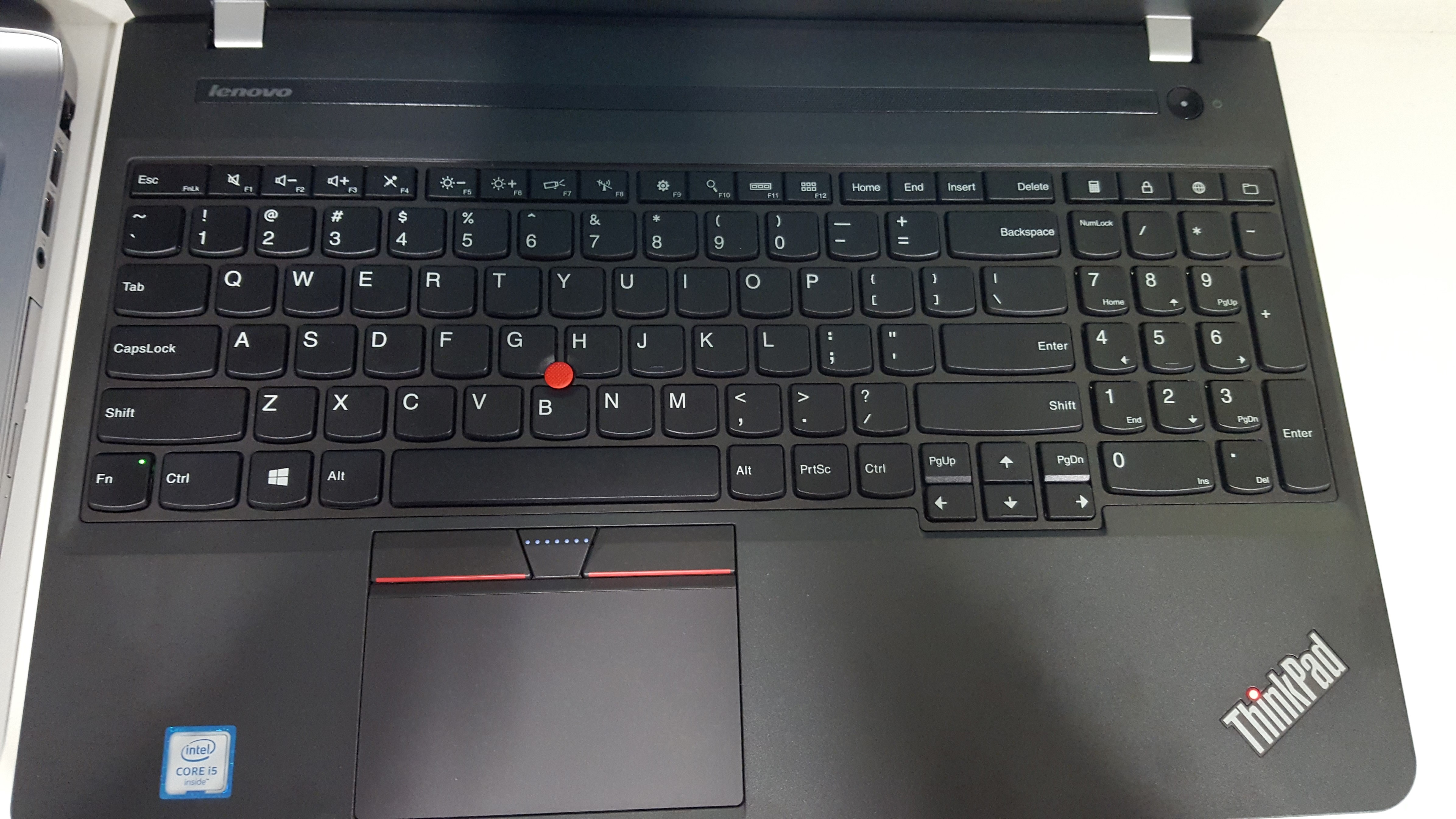
    Keyboard: Most people are fans of the ThinkPad style of keyboards, and this one even has a number pad. Nothing too different or tricky here – I liked the feel of both the keys and the trackpad on this model, and there’s no buttons that felt out of place for me (good to see Caps Lock where it should be!)

    Lenovo ThinkPad P51s Keyboard

    Other observations: The circular power button felt slightly off center, as in the left side of the button dipped in further than the right side. Not something that will make any difference, and isn’t visible unless you look really closely, but still worth mentioning to anyone that will notice non-perfect things like me :)

    At around 2KG the laptop isn’t light, but it’s much lighter than the P50 on my desk. It feels solidly built, the hinge style seems strong and there’s very little screen wobble. The fingerprint reader is also nice for Windows Hello, but this unit actually came with Infa red cameras too – meaning I can use my face to log in. You visibly see something flashing when it tries to read your face (at a guess they’ve got some sort of film over the lenses to show that, since IR is invisible to our eyes normally.

    Beyond that, I’m very happy with this laptop. There’s no frills to it’s appearance, so it’s square and black like most ThinkPads, but it’s enjoyable to use with a screen that has a decent bezel.

    The laptop is also pretty much a ThinkPad T570 with a Quadro graphics card in it, so if you’d rather the consumer Geforce option, check that out too. If you’re looking at videos on how to take this laptop apart, the T570 is identical.

    Lenovo ThinkPad P51s vs P51 or P71: If you’re wondering which to get, the main decision is purely tech specs based. The P51s can take 2 RAM sticks, for a max 32GB RAM. The P51 however has 4 slots, which doubles the max to 64GB.

    It’s similar with the hard drives – a single drive in the P51s, versus the P51 that can hold either; a combo of two M.2 drives and one 2.5″ drive, or two 2.5″ drives. The third spec factor is the dedicated graphics card which in the P51 has 4GB RAM rather than the P51s’ 2GB. The M2200 is also a higher end card than the M520, and worth looking up comparisons on performance.

    Finally the CPU, although the P51s can take a high end i7, it’s still not the Xeon you can get in the P51. Deciding what you want and need in specs, or leaving your options for upgrading in the future. If you don’t need the high end options, the P51s is a great choice which comes in a much thinner form factor, and a bit less weight.

    All the above applies to the P71 too, just with a larger 17.3″ screen.

    Feel free to ask any questions below about the laptop, and I’ll leave a banner here that should update on any Lenovo Australia deals currently on offer:

  • Lenovo Thinkpad E560 vs HP ProBook 450 G3

    Lenovo Thinkpad E560 vs HP ProBook 450 G3


    After looking for a budget but decent business laptop in Australia, I came across these two devices and thought it’d be worthwhile to compare.

    The Lenovo ThinkPad E series is Lenovo’s entry level laptop type for business. If you don’t need super thin and super tough, but still want something that is customisable to your needs, these are great as entry level devices. The E560 is the latest 15.6″ model in the E series with an Intel CPU.

    On the other hand, the HP ProBook 450 G3 is part of HP’s ProBook series, which is their version of the budget business laptops. I couldn’t work out what the G3 stood for after some research, if you know please share! :) The 450 G3 is also a 15.6″ laptop, customisable to the specifications you choose.

    20160815_173054 (Custom)Back to Back – E560 & 450 G3

    After getting my hands on both laptops, there were a lot of similarities. I’ll run through some comparisons below. Specs have been sourced from the Lenovo and HP websites.

    20160815_173019 (Custom)Side by Side – E560 & 450 G3

    Weight and Dimensions

    E560
    37.7cm x 25.5cm x 2.38~2.71cm
    Starting at 2.30 kg

    450 G3
    37.8 x 26.43 x 2.38 to 2.48 cm (front to rear) (non-touch);
    37.8 x 26.46 x 2.55 to 2.65 cm (front to rear) (touch)
    Starting at 2.07kg

    The HP is a bit lighter to start with, but without a scale and comparing the two build I had, they felt very similar. The HP seemed to have more weight at the back while the Lenovo was more centered. Alternatively, the Lenovo is slightly smaller in length and width, but height varies from shorter to taller depending on the E560 config. To me, all of these aren’t deciding factors between the two.

    Winner – Too close to call

    CPU

    The processor options between the two are identical for the Skylake 6th generation ‘i series’ of Intel CPUs. i3, i5 and i7 are all choosable with the same variant on both models. The HP also has a Pentium processor option, but this is very low end and I personally wouldn’t consider this.

    Winner – Both

    RAM

    Again, both laptops can go up to 16GB of DDR RAM. Interestingly, the Lenovo is DDR3 1600Mhz while the HP is DDR4 2133Mhz. This might sound major, but the performance difference between the two is negligible when benchmarked. Not a deciding factor between the two here, even though it’s nicer to have a newer technology :)

    Winner – HP slightly

    Storage

    450 G3

    • 500 GB SATA (7200 rpm)
    • 500 GB up to 2 TB SATA (5400 rpm)
    • 128 GB up to 256 GB M.2 SATA TLC SSD
    • 500 GB SATA SSHD (5400 rpm)

    E560

    • 500GB 7200 RPM HDD
    • 500GB 5400rpm Solid State Hybrid Drive (SSHD) with 8GB NAND flash memory
    • 1TB 5400 RPM HDD
    • 192GB SSD (although I could find a 256GB SSD option)

    Yet again, we’re seeing similar options. I wouldn’t go past SSD, but you do pay a small premium for that. For an entry level business laptop 128GB is probably enough too, but the 256GB is a nice bit of extra room. The HP has the newer M.2 SATA style SSD, but again there is very little difference in that versus the SATA SSD contained in the Lenovo.

    Winner – HP slightly

    Display

    450 G3

    • 15.6″ diagonal HD anti-glare flat LED-backlit (1366 x 768)
    • 15.6″ diagonal full HD anti-glare slim LED-backlit (1920 x 1080)
    • 15.6″ diagonal HD flat LED-backlit touch screen (1366 x 768)

    E560

    • 15.6″ HD (1366 x 768) Anti-Glare, 220 nits
    • 15.6″ FHD (1920 x 1080) IPS, Anti-Glare, 250 nits


    20160815_172738 (Custom)450 G3 & E560 displays

    I couldn’t visibly tell a difference in quality between the two. The HP is the only one with a touch option, but you’ll pay for that benefit. If you need touch, then the 450 G3 is the only choice. Otherwise, I’d recommend either with a 1920 x 1080 resolution

    Winner: Both, (HP if you need touchscreen)

    Graphics

    450 G3

    • Onboard Intel HD
    • AMD Radeon™ R7 M340 (1 or 2 GB DDR3 dedicated, switchable)

    E560

    • Onboard Intel HD
    • AMD Radeon™ R7 M370 2 GB GDDR5


    As the Intel HD graphics is part of the CPU, those are again identical between the two models. If you need more grunt though, the E560 has the clear advantage of a better discreet graphics card. Many businesses may not care about this, but if you’re doing modeling or other GPU intensive tasks, this could matter

    Winner: Both, (Lenovo if you need a dedicated GPU)

    Ports

    450 G3

    • 2 USB 3.0
    • 2 USB 2.0
    • 1 HDMI
    • 1 headphone/microphone combo
    • 1 AC power
    • 1 RJ-45
    • 1 VGA
    • 1 multi-format digital media reader

    E560

    • 3 x USB 3.0
    • 4-in-1 card reader (MMC, SD, SDHC, SDXC)
    • Lenovo OneLink Docking Port
    • VGA
    • HDMI
    • Combo audio/microphone jack
    • Ethernet (RJ45)
    • Security keyhole

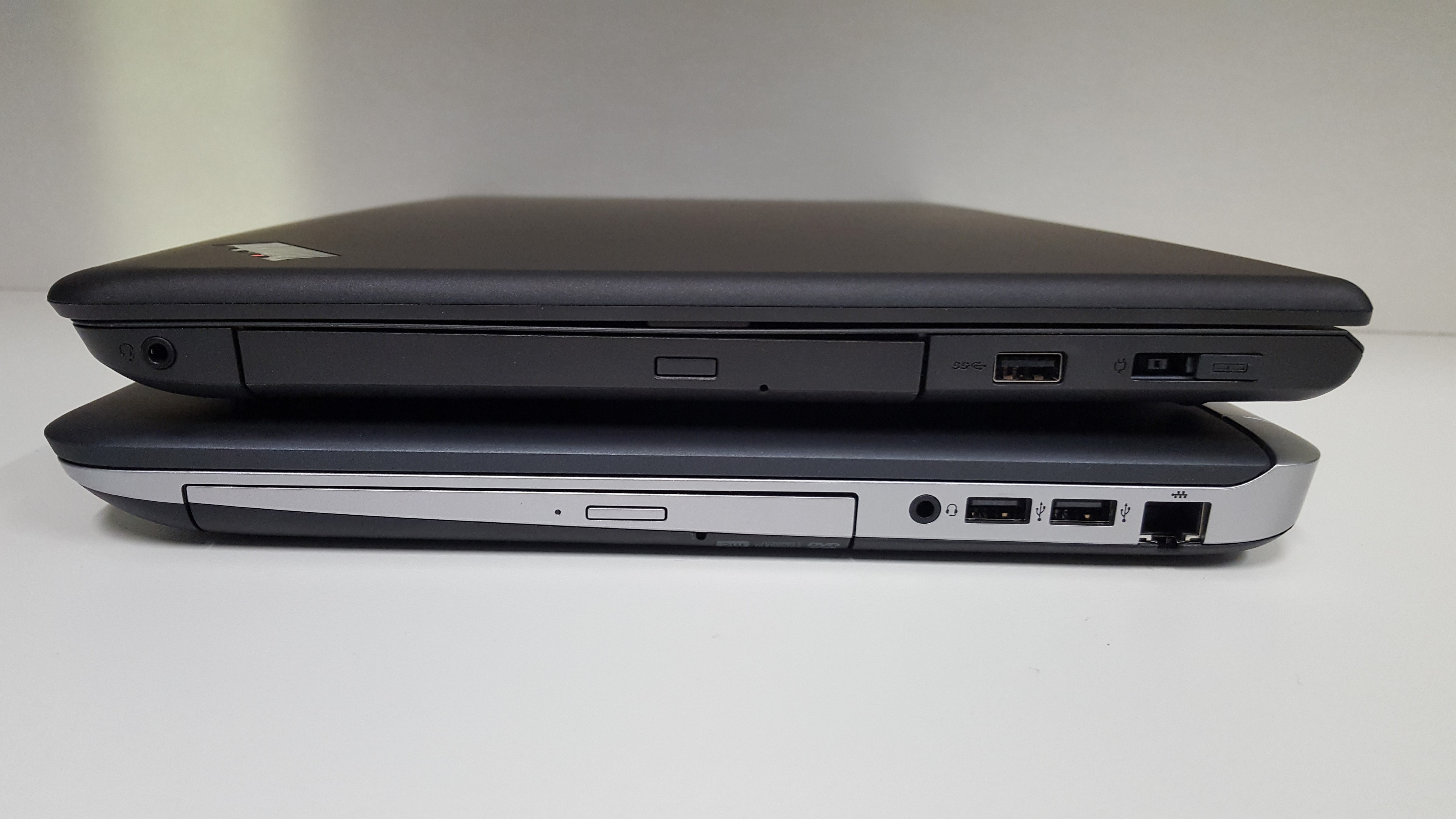
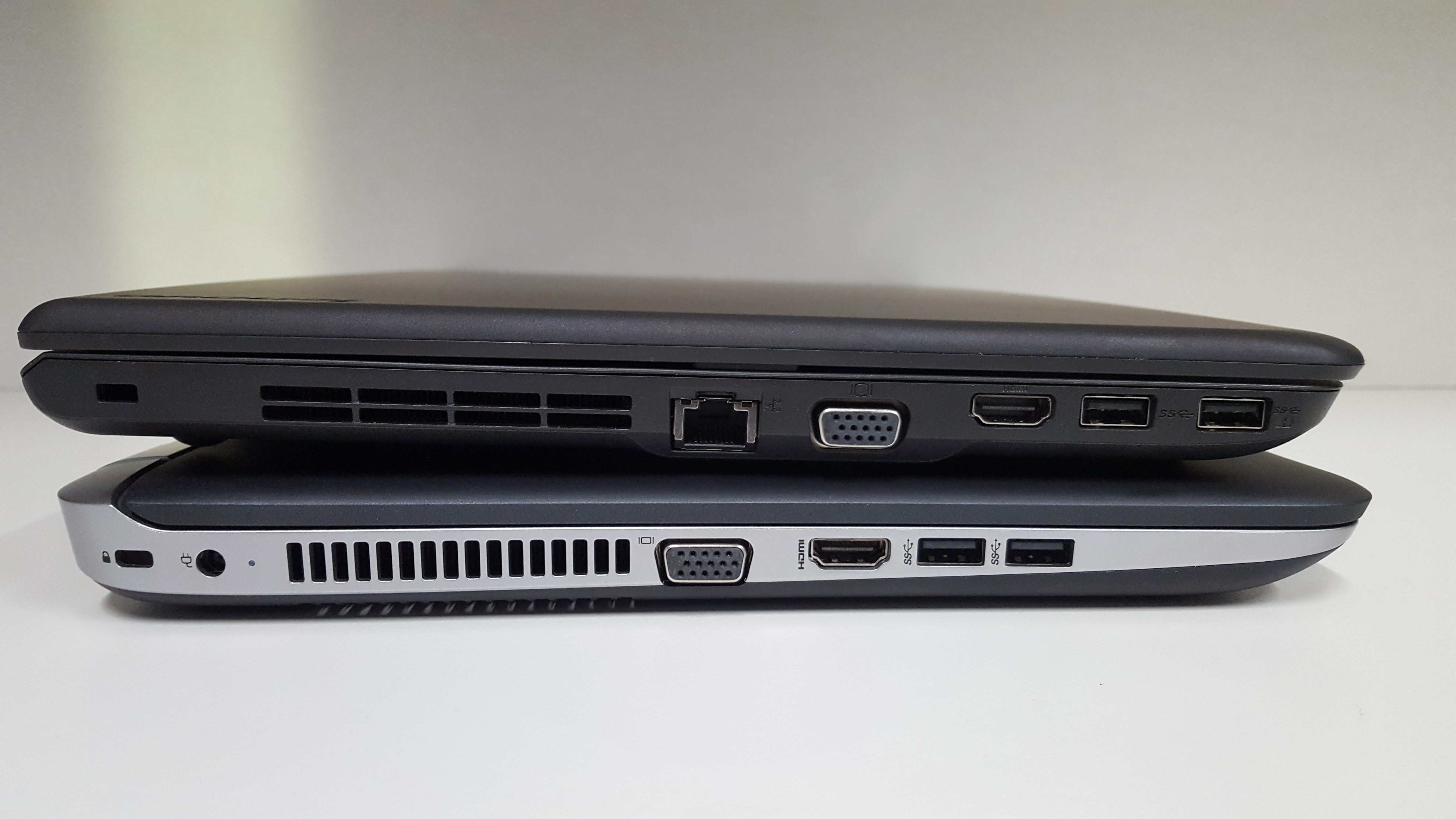
    20160815_172940 (Custom)20160815_172925 (Custom)20160815_172909 (Custom)E560 on top of the 450 G3

    Having lots of useful ports is important. The Lenovo has an extra USB 3 port at the cost of two USB 2.0 ports. Personally I’d rather the 3 x USB 3.0 but if you need a wired keyboard and mouse, then those would be better used on the HP’s two USB 2.0 ports, leaving two USB 3.0 free. The Lenovo having the Onelink Docking Port is good if you want a dock, otherwise on the HP you’d have to use one of the USB 3.0 ports for this.

    Winner: Too close to call

    Camera

    450 G3

    • 720p HD webcam

    E560

    • Integrated 720p HD Camera, with Dual MIC
    • 720p HD Intel® RealSense™ 3D Camera

    The quality of the two cameras are the same, but the Lenovo has an optional Intel RealSense 3D Camera. The model I had was set up this way, which gives you Windows Hello sign in – look at the camera for a second and you’re logged in without touching the laptop. This is one of those features that you won’t be bothered about until you have it, then you’ll be annoyed when you use another computer missing the feature!

    Winner: Lenovo (if you want to pay extra for RealSense)

    Keyboard and Trackpad


    20160815_172837 (Custom)HP ProBook 450 G3 Keyboard and Trackpad

    20160815_172844 (Custom)Lenovo ThinkPad E560 Keyboard and Trackpad

    These are more of a personal preference, but to me the Lenovo keyboard and trackpad were a lot nicer than the HP’s. The trackpad itself feels of higher quality, as do the keys. The HP does have an optional backlit keyboard though, so if you’re doing a lot of typing in the dark, that may trump the quality and feel of the Lenovo. The lenovo also has a pointing stick, and full arrow keys which you can see in the photos above.

    Winner: Lenovo

    Wrap up

    There were some other features I didn’t mention, such as both having a DVD drive – but this doesn’t help you choose between the two. The Lenovo is most customisable online where each option was a tickable addon, clearly showing the cost when purchasing. HP seemed to be more clunky, where I could only find a single model for sale that couldn’t be customised. Speaking to them online or contacting them may be a way to get the particular features you want.

    Due to this, I couldn’t spec both up the way I’d want and give a price comparison. Here’s the optional specifications I’d pick which both models support, which should be best bang for buck:

    Processor : Intel Core i5-6200U Processor (3MB Cache, up to 2.80GHz)
    Operating System : Windows 10 Professional 64
    Hard Drive : 256 GB Solid State Drive, SATA3 OPAL2.0 – Capable
    Display : 15.6 FHD (1920×1080) IPS Non-Touch
    Memory : 8GB PC3-12800 1600MHz DDR3L (1 DIMM)
    Graphics : Intel HD Onboard

    Of course, the dedicated AMD GPU would be nice, and depending on price I’d add one on too.

    If you haven’t guessed by now, there’s no clear winner. I’d be choosing on price primarily, and if it happened to be the same, the above information will hopefully help you pick one over the other, depending which little extras you want. Both are solid laptops, and with the right specifications neither would be a regrettable purchase.


    I was also asked this on Twitter about the comparison of the two laptops:


    My answer on this is the same, both would be a great fit and I’d choose on price. The laptop can be connected to your TV via HDMI, and a remote connected via USB dongle to control something like Kodi.

    If you have any questions or comments, please write below!

  • ASUS Warranty Repair wants my Password?

    Hi,

    Last year I bought an ASUS laptop for my wife – an ASUS Vivobook S400CA which isn’t too badly specc’d with a small SSD drive and touchscreen. All seemed OK, apart from a somewhat dodgy spacebar that had to be pressed rather hard. We lived with that for a while, but got fed up so decided to log a fault on it.

    I first started with calling the place of purchase – JB Hifi, who said I had to go to the manufacturer (I don’t *believe* they can legally say this under Australian Consumer Law, but that’s an aside issue) so I contacted Asus. I gave them all the necessary details, and was told I’d be contacted by the local Asus Repair Centre. A few hours later they called me, and said instead of posting it in, I could drop it off – fine by me as it was just down the road.

    Upon arriving at the Asus Repair Centre, I am given more paperwork to fill out. It’s become obvious that this isn’t actually Asus, but a company that does work on their behalf. Again, no issue here as long as someone’s fixing the laptop. One of the fields on the paperwork asks for a ‘Password’. I query the person at the counter on this, asking why they need such a detail, especially since this is a faulty spacebar… and even if they really need to test it, the login screen will let them try.

    The response was that because they did work on behalf of Asus, they had to test everything and give it a tick of approval, otherwise people will bring back their items with other faults and Asus has to keep paying this company each time that occurs. I can understand where they’re coming from, but they don’t need to log into my personal installation of Windows to do this surely? They said it was a necessity and they couldn’t accept the laptop without it.

    I immediately logged in, created a temporary account with as little access as I could, and gave them the details. There wasn’t anything personal on this laptop that I knew of, but it’s still a worrying state.
    I’m sure many of you will read this and just shake your heads, but here’s some reasons as to why this is bad practise:

    1. Giving them access to the laptop means they can easily go through it’s contents. Unless you’re computer savvy, you’re going to have little idea what access they actually have by handing over a login.
    2. These laptops run Windows 8 – Microsoft promotes the use of a Microsoft account for login. This login doesn’t just give local access to the laptop, but any service connected to the Microsoft account – Xbox, Hotmail/Outlook.com, Skype, SkyDrive – scary stuff.
    3. Someone logging a warranty claim should be told that this is a requirement before you turn up and get asked for credentials.
    4. When is it ever a good idea to write down your password on a piece of paper and hand it to a stranger?

    I’m not sure if this is Asus’s own process, or just a process this particular 3rd party uses – but either way, this is something they should reconsider their policies and method. My recommendation would be for them to boot off a USB or CD to run diagnostics on the hardware, simple.

    Note: I sent a tweet to Asus’s Australian twitter account @ASUSAU for comment but did not hear back. If I do hear anything, this article will be updated.

  • Samsung ATIV Smart PC Pro 700T Review

    Hi,

    I’ve been using the Samsung ATIV Smart PC Pro 700T solidly for a week for work purposes while travelling, so I thought it was about time to put up a brief review.

    What is it? A hybrid laptop/tablet from Samsung that runs Windows 8. It’s a hybrid as you can undock it from the keyboard (similar to a Microsoft Surface, but the docking/undocking mechanism is nowhere near as nice) and use it as a tablet.

    Here’s the Samsung site for it: http://www.samsung.com/us/computer/tablet-pcs/XE700T1C-A01US

    …and here’s the specs from the same site:


    Processor
    Processor
    Intel® Core™ i5-3317U Processor
    Speed (GHz)
    1.70 GHz
    CPU Cache
    3MB L3
    Display
    LCD Size
    11.6"
    Type
    LED Full HD
    Resolution
    1920 x 1080
    Brightness
    400 nits SuperBright™ Plus Technology
    System Memory
    System Memory
    4GB
    Memory Type
    DDR3 (1600MHz)
    Max. System Memory
    4GB (On Board)
    Storage
    HDD
    128GB SSD
    HDD RPM
    SSD
    SATA
    SATA2
    Graphics
    Chipset
    Intel® HD Graphics 4000
    External or Integrated
    Integrated
    Maximum Graphics Memory
    Shared
    Sound & Camera
    Speaker
    Stereo Speakers (1 W x 2)
    Sound Effect
    SoundAlive™
    Web Cam
    2.0 MP HD(Front)
     5.0 MP HD (Rear)
    Internal Mic
    Yes
    Wireless
    Wireless LAN
    802.11 a/b/g/n
    Bluetooth
    4.0
    WiDi
    Yes
    I/O Ports
    HDMI
    Micro HDMI
    Headphone Out
    Yes (Headphone/MIC combo)
    Microphone In
    Yes
    USB Ports (Total)
    1 x USB 3.0
    Multi Card Slot
    1 Micro SD
    Docking Port
    Yes
    Input Devices
    Touch Pad / Track Point
    Available with Keyboard Dock Accessory
    Power
    AC Adapter
    40 W
    Number of Cells/Cell Type
    4 cell / Li-Po
    Watt Hours
    49
    Dimensions
    System Dimensions (L x W x H, Inch)
    11.97" x 7.46" x 0.47"
    Weight
    System Weight (w/Std. Battery, lb.)
    1.96 lb.


    As you can see, it’s grunty enough with an i5 CPU and has the current standard Intel graphics chipset, but the screen runs at a rather high 1920 x 1080 for an 11.6″ screen. For general day to day use, this is just makes text a bit too small, and makes the cursor difficult to use with a small trackpad and a lot of pixels to cover distance wise.

    The undockable keyboard is quite nice to use (I’m typing on it right now) so no complaints there, but due to the weight of the screen being a stand-alone tablet, there are two annoyances. First, it’s top heavy so can easily fall backwards as the keyboard is quite light. Secondly, the joints that hold up the screen aren’t tight enough so if you’re trying to type in bed on your back, the screen will just collapse onto you.

    Other things like battery life were adequate at 3-4 hours, screen orientation detection works quite well and the 3 USB ports are again adequate, but 1 or 2 more wouldn’t go astray. There’s only one USB port on the tablet, and an extra 2 on the keyboard. The touchpad is nice to use, but I kept triggering right clicks when I didn’t intend to.

    Overall a decent device depending on your needs, but in my eyes the Surface is a better pick.