I ran into a problem where a user couldn’t sign into Intune, which uses Azure Active Directory to authenticate users.
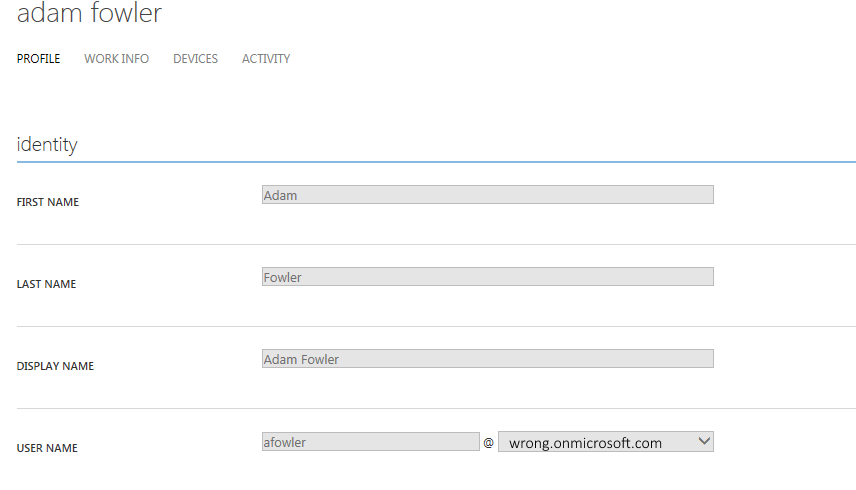
After checking the user in question on the Azure Active Directory portal, I noticed the domain was wrong:
The user was being synced from On Premise Active Directory, so I had a look via Users and Computers to see what was going on. The user’s User Principal Name domain field was set differently to other users – instead of the proper mydomain.com, it was set to mydomain.local – another valid internal domain to Active Directory, but not one that Azure Active Directory knew about:
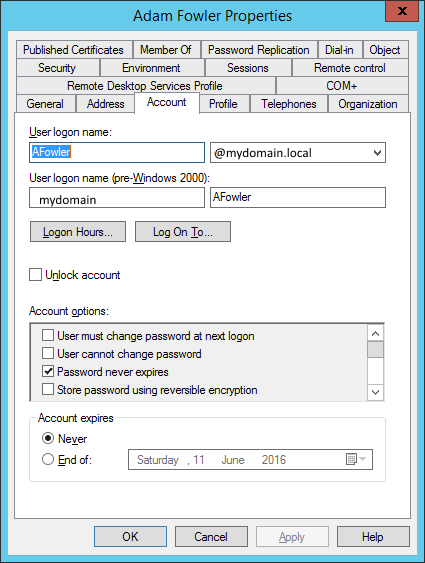
The unknown domain caused Azure Active Directory to disregard it, and instead use it’s default tennancy domain of wrong.onmicrosoft.com. I thought just changing the dropdown menu to mydomain.com instead of mydomain.local would fix it, but a forced Azure Active Directory Sync sync reported the change was successfully synced, but didn’t actually change the value.
I’m going to guess this is by design, as you don’t usually want logins changing. There is an easy way to change the via PowerShell instead.
Once you’ve run the standard ‘Connect-MsolLService‘ cmdlet, you can use ‘Set-MsolUserPrincipalName‘ to change the user. The full command is:
Set-MSolUserPrincipalName -userprincipalname “existinguser@mydomain.local” -NewUserPrincipalName “existinguser@mydomain.com”
Pretty simple, and the change is immediate.
I then realised there may be other users with the same problem, so dediced to use the Active Directory PowerShell Module with this command:
get-aduser -filter * | where {$_.userprincipalname -like “*local*” -and $_.enabled -eq “true”} | select name
This showed all the users who had ‘local’ in their UPN. As there were only a few, I changed them all one by one with the first command above.
The same check can be run against Azure Active Directory users with this command:
get-msoluser -all | where userprincipalname -like “*local*”
Easy!
Leave a Reply