
Updated 20th January 2022
I’m a big fan of Microsoft Planner, and it’s a great way to intro people into using some of the extra Office 365 features that gives a pretty quick benefit with very little training.
However, this is one problem I’ve come across; there is no option to change the date format in Microsoft Planner. The date format itself is actually dependent on what language you’re viewing the page as.
Here’s two tasks created on the same plan in the same tenant:
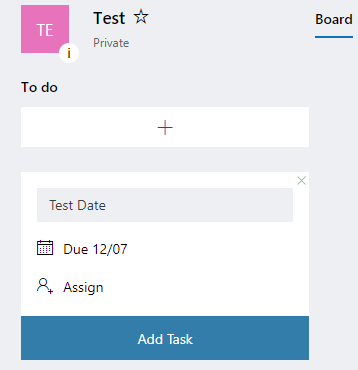
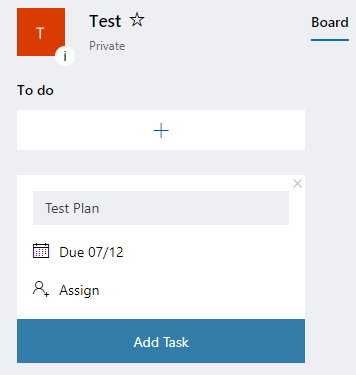
12th of July, or 7th of December?
All I changed was the URL. The URL format will be https://tasks.office.com/adamfowlerit.com/en-us/Home/Planner/#/… and the ‘en-us’ component can be changed to ‘en-au’ or ‘en-gb’ (along with other languages most likely that I didn’t test).
Depending how I access Planner seems to generate different a different language. There’s several ways this can be updated, but for an individual, you can change your regional format here https://myaccount.microsoft.com/settingsAndPrivacy/?languagesettings=true to display the format you want.

Microsoft Teams
If you’re using Planner inside Microsoft Teams, the date format shown is based on the App Language of Teams itself – which seems to default to English (United States) regardless of Planner, Office, or computer locale. To change:
In Microsoft Teams, go into settings (elipsis next to tenant name and profile)

Under the General area, scroll down to Language and the App Language dropdown. After selecting your region, make sure you click the ‘Save and restart’ button, or it won’t save your change at all.

After Microsoft Teams restarts, you should see the correct date format for Planner tabs.
To set it company wide or default as a user
Setting the language and region as per https://docs.microsoft.com/en-us/office365/troubleshoot/access-management/set-language-and-region does not seem to affect Teams (as I’ve had both set to en-au, logged onto a new computer and Teams has still been English (United States)
Patrick Lamber (MVP) found the following way to do it via PowerShell https://www.nubo.eu/Change-The-Display-Language-In-Your-Microsoft-Teams-Client/ as did Jesse Loudon https://purple.telstra.com/blog/automate-microsoft-teams-desktop-settings-with-powershell
There is a great writeup of the state of Language in Microsoft 365 here https://blog.thinformatics.com/2020/09/microsoft-365-language-confusion/ where the writer Jakob says:

Leave a Reply