
Dictation is a pretty cool feature in Windows 10. Press Winkey + H, and up comes a small prompt in the middle of your screen telling you it’s listening – you can start talking, and your words start appearing wherever your cursor is.
Not only that, but you can give commands like a light version of Dragon NaturallySpeaking such as ‘delete test’ to delete the last word ‘test’. Or ‘Select the next three words‘ to highlight them – basic cursor management you’d normally need a mouse for.
A managed Windows 10 computer however, may not have all the components required to use Dictation, and a user may not have the access to download the speech packs themselves.
I hit a problem where Dictation would say ‘Download a Speech package for dictation’, but clicking that link would take me to settings and show that it was already installed. An admin of the PC doing this however, would somehow trigger a component to install and Dictation would work fine.

An admin of the PC doing this however, would somehow trigger a component to install and Dictation would work fine.
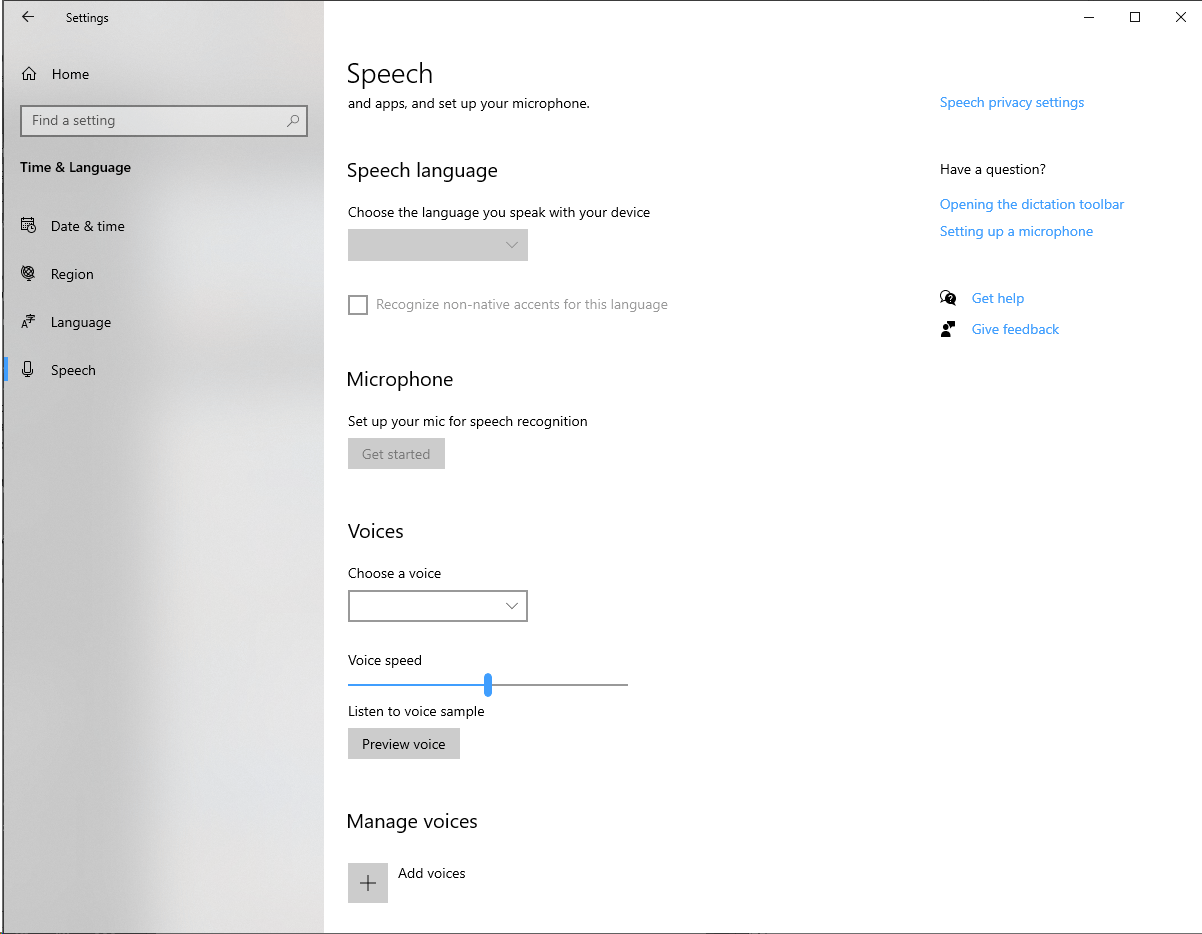
Under the user context, going to the Speech settings would show all the options as greyed out and blank:
After raising this with Microsoft Support, this was the method we found to make it all work:
These are the components that I required for Dictation:
• Language Basic component
• Language Text-to-speech component
• Language Speech component
These components are available to download via the “Windows 10 Features on Demand Pack 1” which you can find in your MSDN My Visual Studio downloads (the latest being version 2004). You’ll probably need a subscription for this.
Features On Demand are also available via Windows Update but this may not help you if you have a WSUS server.
The resulting ISO, e.g. en_windows_10_features_on_demand_part_1_version_2004_x64_dvd_7669fc91.iso will contain a separate .cab file for each feature. From this, it’s then a matter of using the DISM tool to inject each feature into Windows 10:
Dism /Online /Add-Package /PackagePath:F:\Microsoft-Windows-LanguageFeatures-Basic-en-au-Package~31bf3856ad364e35~amd64~~.cab Note you can add multiple packages to the above command, so could do all three with a single line. If you want to know what packages are already installed on a Windows 10 device:
Dism /Online /Get-Packages Privacy
There’s one big other catch with Dictation. You’ll need to enable ‘Online speech recognition’ which leverages Microsoft cloud based services as part of using Dictation.

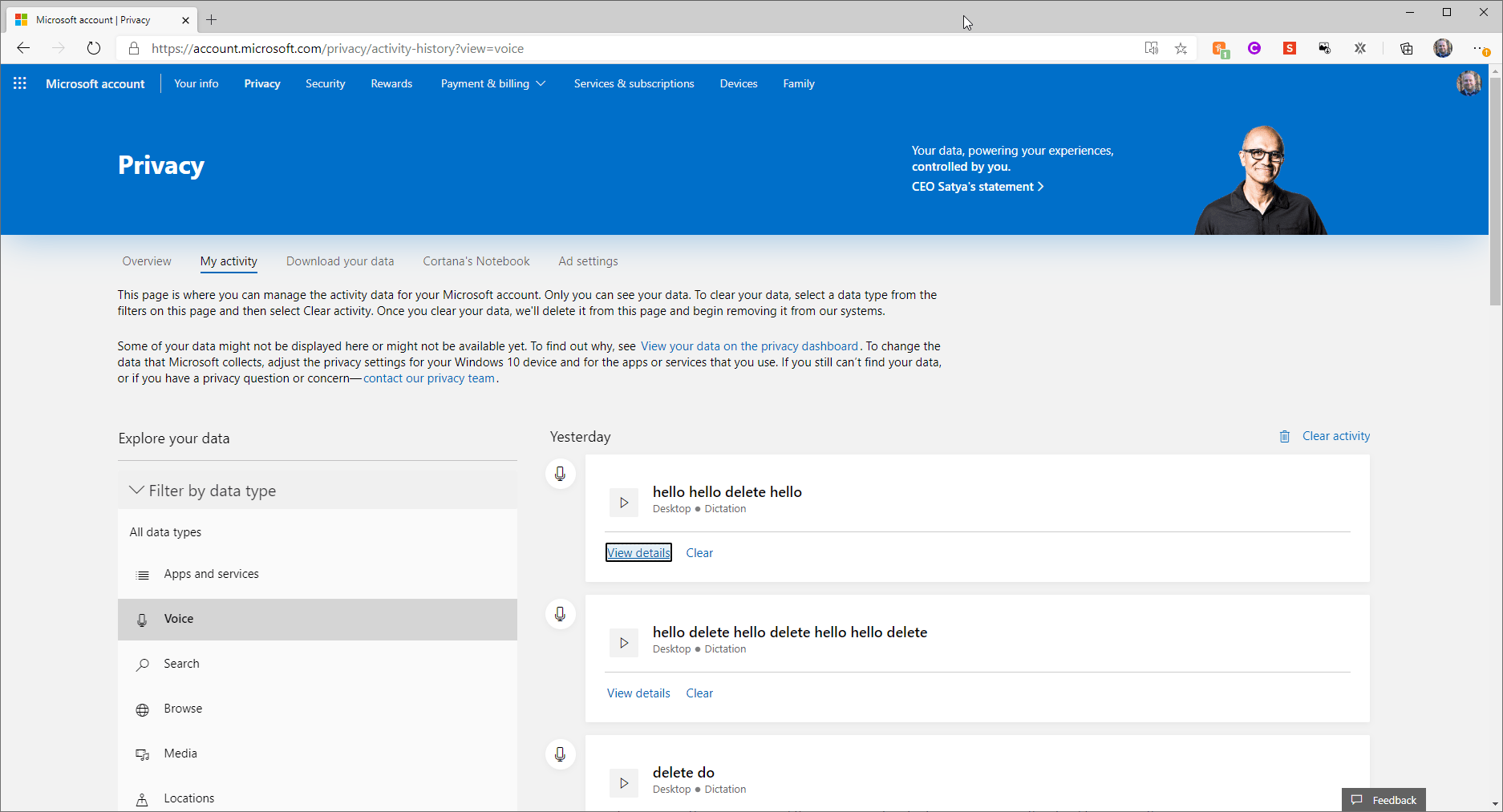
If you’re running a computer that’s logged on under a Microsoft account, everything you say is being captured. You can view this data here and choose to delete it:
https://account.microsoft.com/privacy/activity-history?view=voice
I’m still clarifying how this works in other scenarios, and will update this blog post if I find out any more information.
If as a company, you’ve decided and accepted this scenario, you can toggle the option on for users using this registry setting:
HKEY_CURRENT_USER\Software\Microsoft\Speech_OneCore\Settings\OnlineSpeechPrivacy
HasAccepted DWORD
0 = Off
1 = On
Maybe you won’t need to do any of the above at all – but it’s worth understanding what’s out there, and if you understand and accept the privacy aspect; and if you do, then promoting it to your userbase as a potentially big timesaver… especially for those 1 finger keyboard typists!
It’s also worth nothing that several Microsoft 365 products include Dictate inside the app, more about that here.
Leave a Reply